News & Notes > Quick Start Guide
Quick Start Guide
bioRxiv | 2025-12-16
Please read our Community Guidelines before submitting your comment.
Submitting a Comment
To submit a comment:
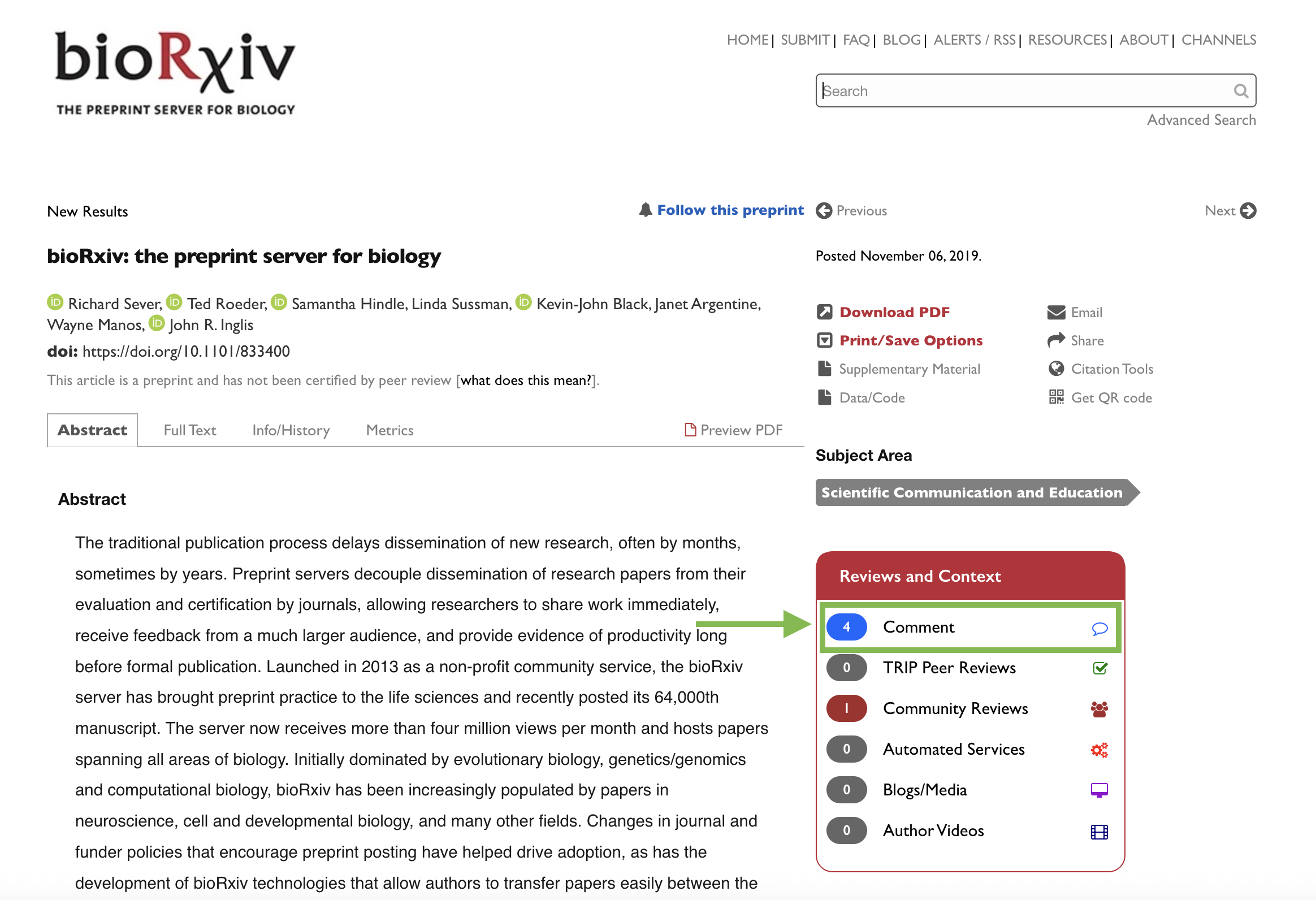
- Click on ‘Comment’ in the Reviews and Context section to open the Comments tab of the Dashboard.
-
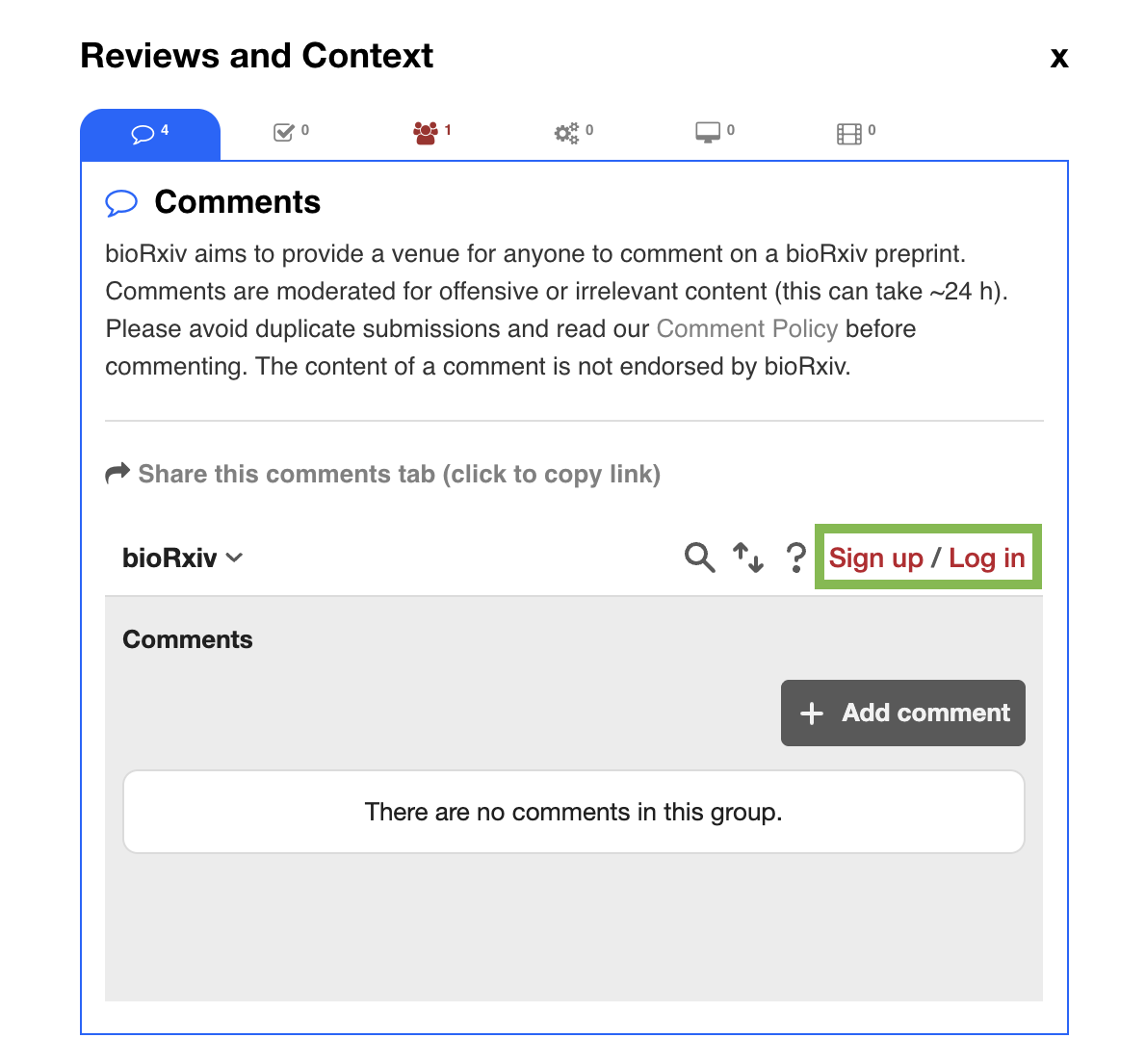
In the Comments tab, click on 'Sign up / Log in' to create an account or log in.
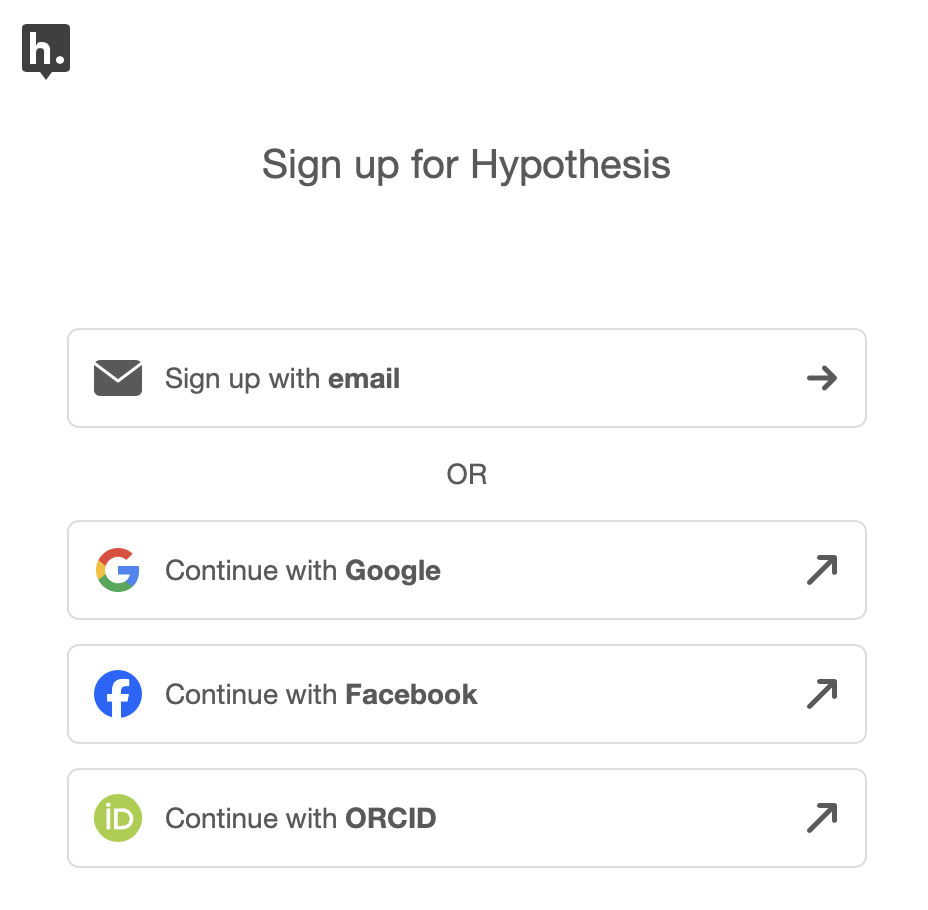
To create an account, select a mechanism to sign up (e.g. via your email or social login) then follow the prompts. You will receive confirmation email — check your spam inbox if you don’t see the email. Click the link contained in your confirmation email to activate your account.
-
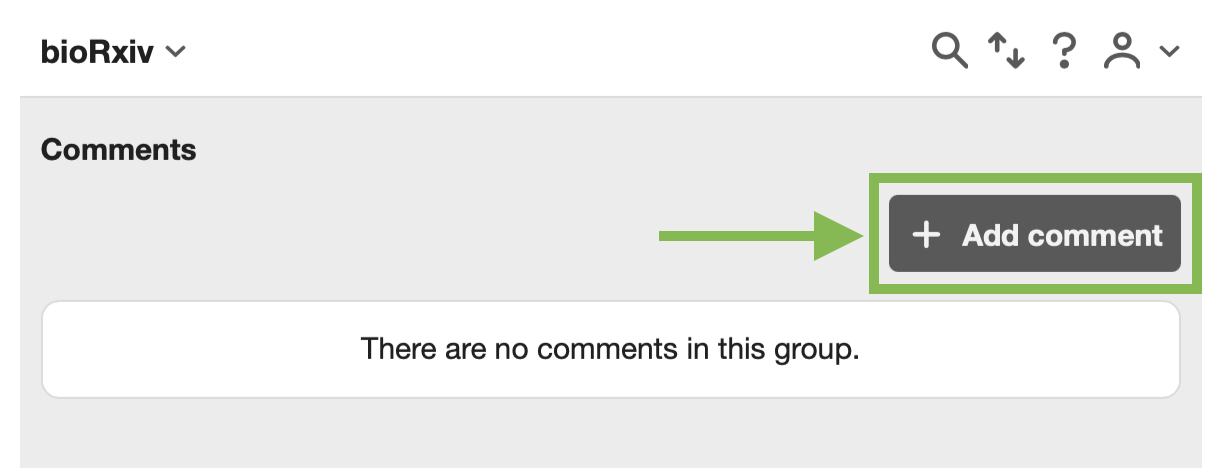
In the Comments tab, click the + Add Comment button to create a comment.
-
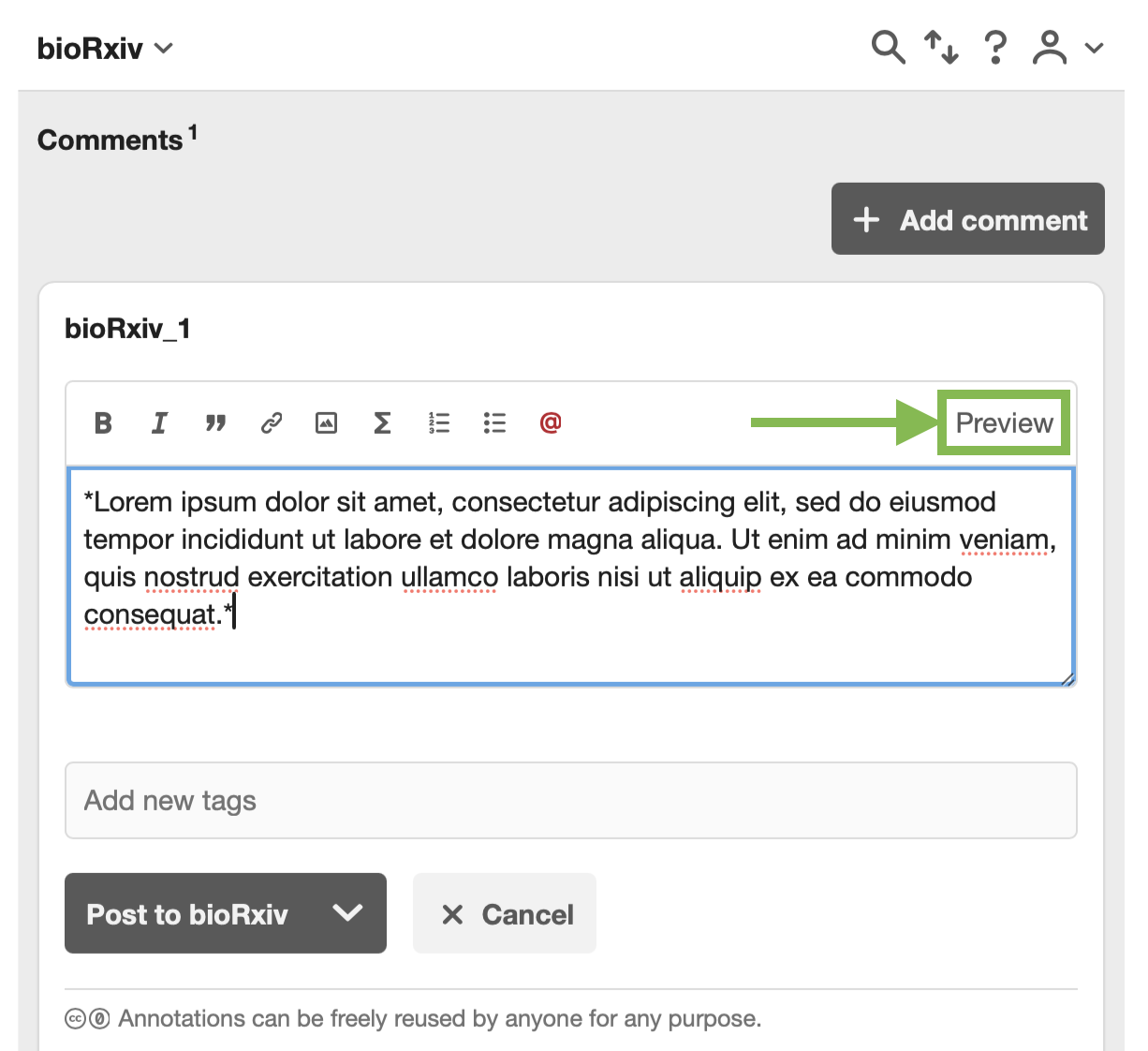
Write your comment in the comment field provided. Click 'Preview' if you wish to see how your comment will display.
-
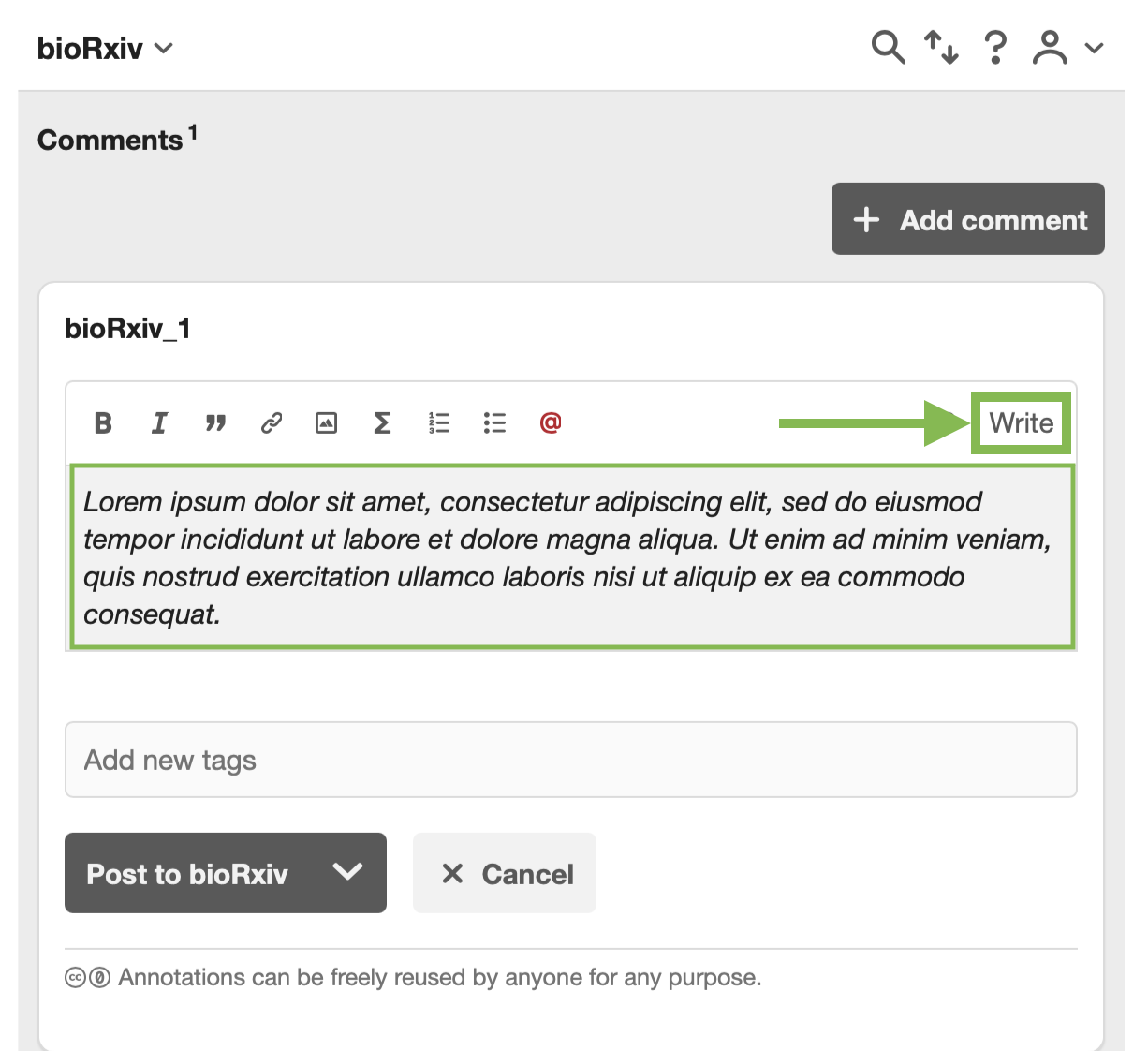
Click 'Write' if you want to make changes to your comment
-
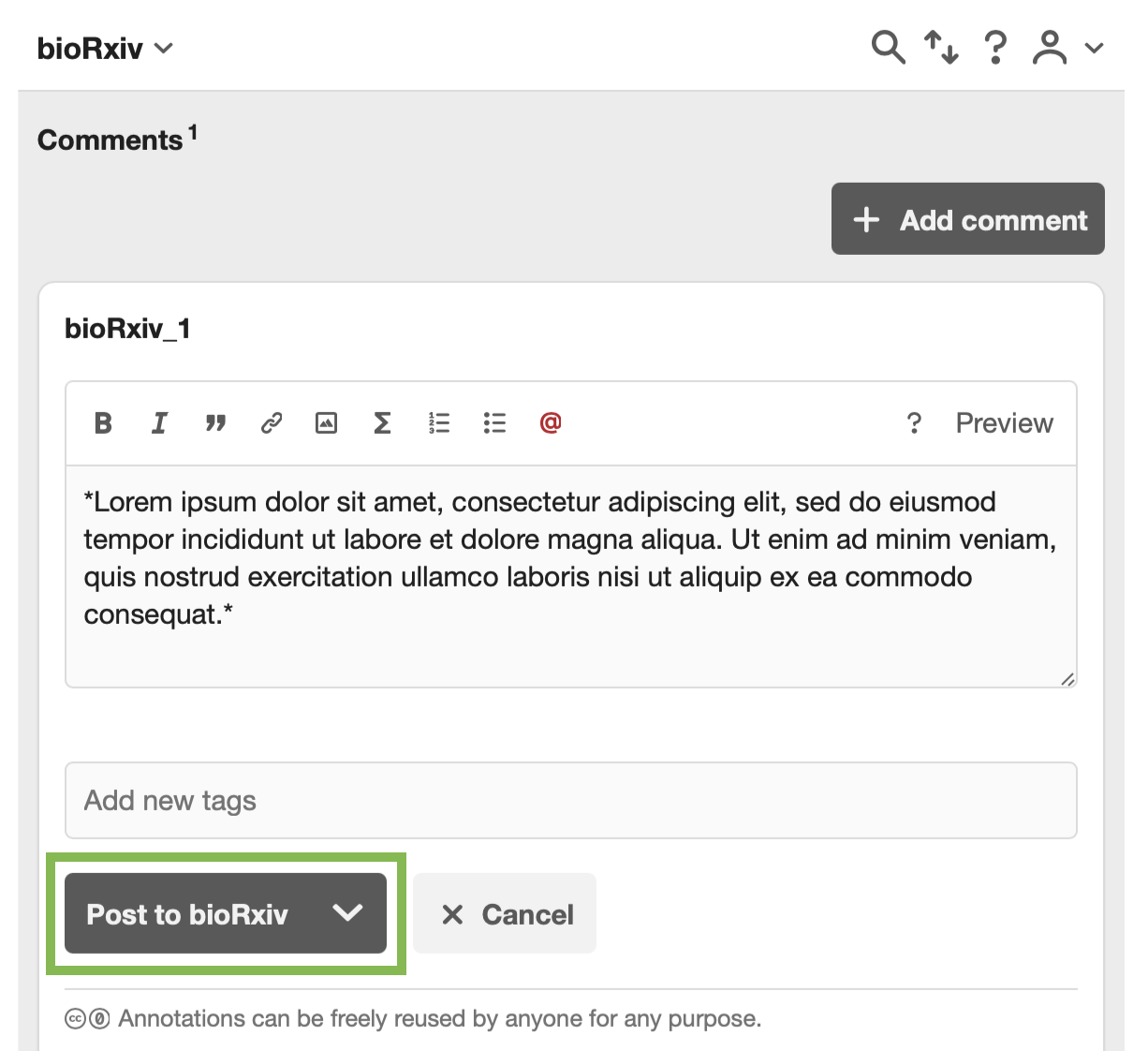
To submit your comment, click the 'Post to bioRxiv' button.
Submitting a Reply
To submit a reply, start with steps 1 and 2 above then:
-
Look for the comment you want to reply to and click the Reply button.
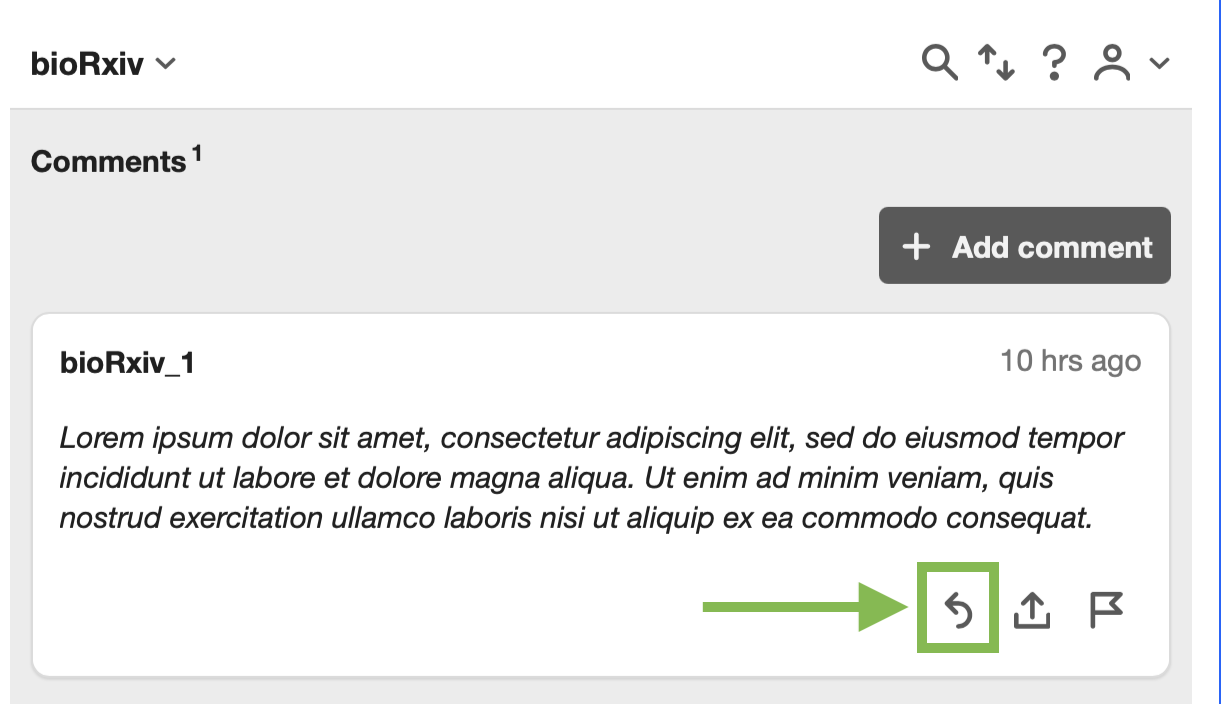
-
Write your reply in the comment field provided and click the Post to bioRxiv button.
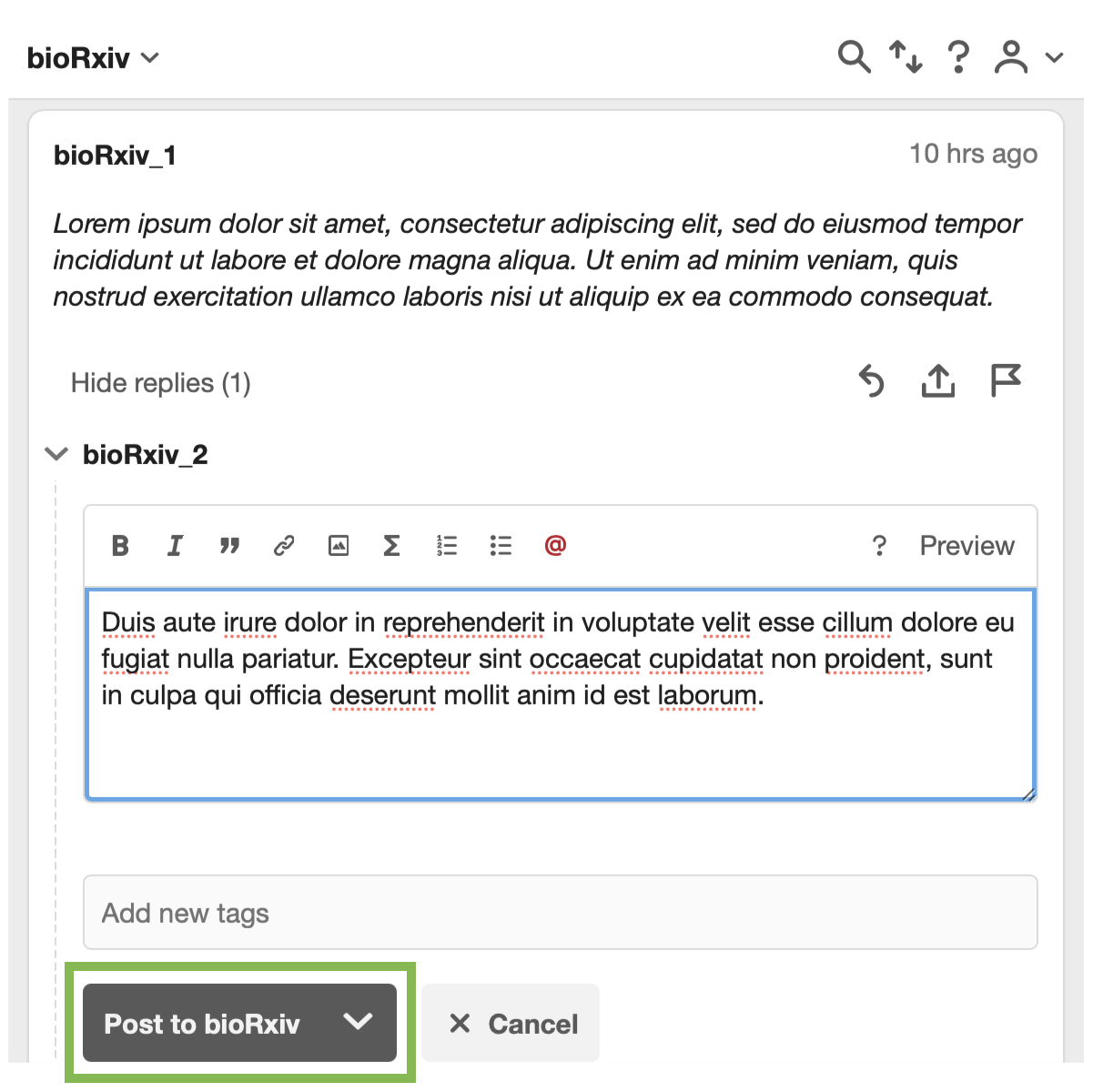
What happens next after submitting a Comment or Reply?
Once your comment has been submitted it will have a Pending badge in the lower left.
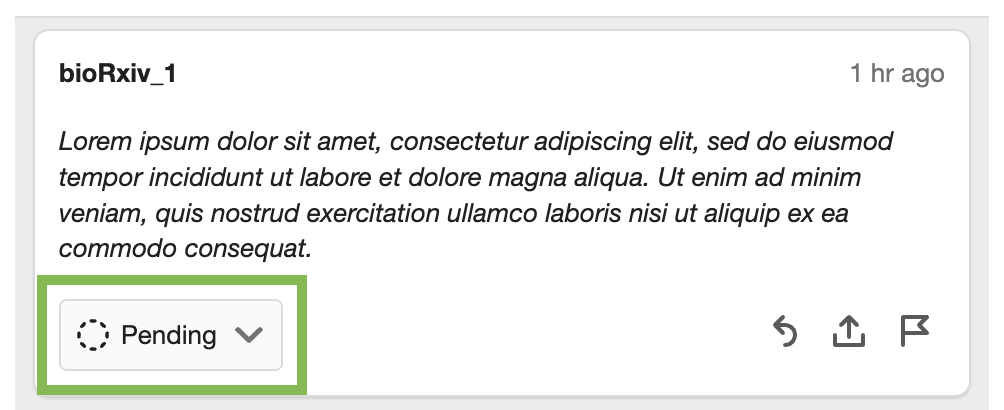
Your comment is sent to the site moderators for review. While it’s pending, only you and the moderators can see it.
What happens when a comment is approved?
- You'll receive an email notifying you that your comment has been approved.
- Your comment becomes visible to everyone.
- The Pending badge will no longer be visible.
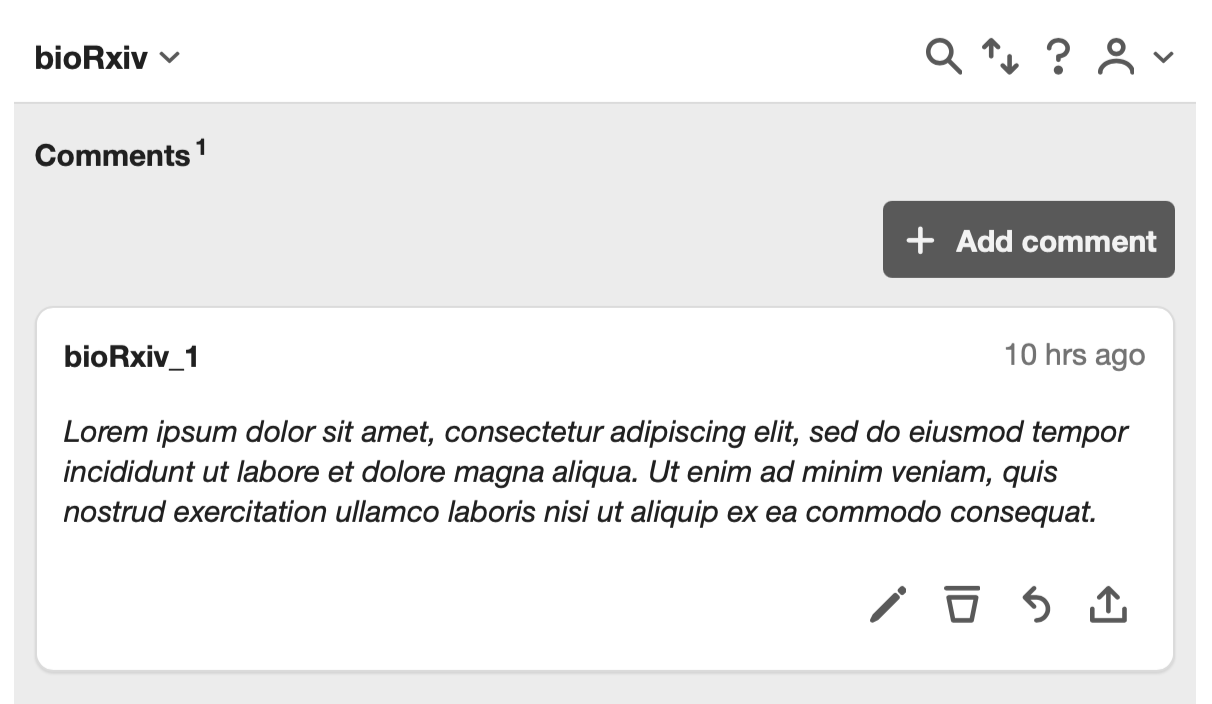
What happens when a comment is declined?
- You’ll receive an email notifying you that your comment has been declined.
- Your comment will no longer be displayed publicly in the comment section.
- The Declined badge will replace the Pending badge.
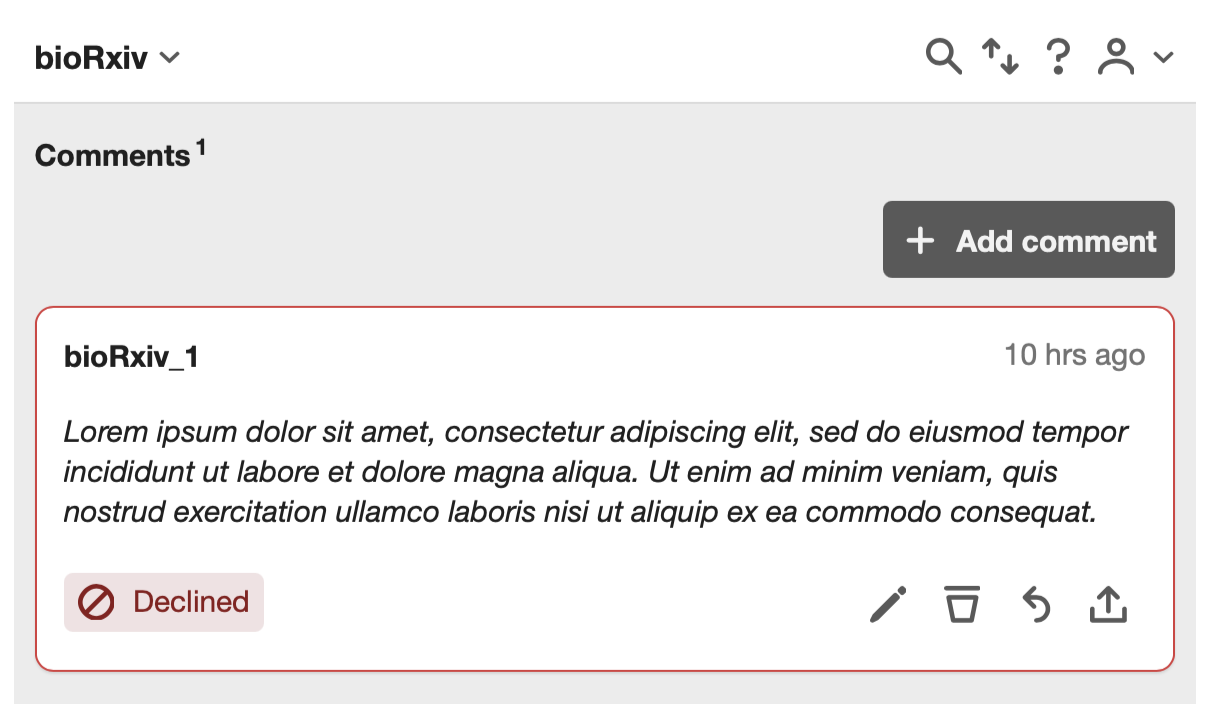
To edit and re-submit your comment:
- Click the Edit button.
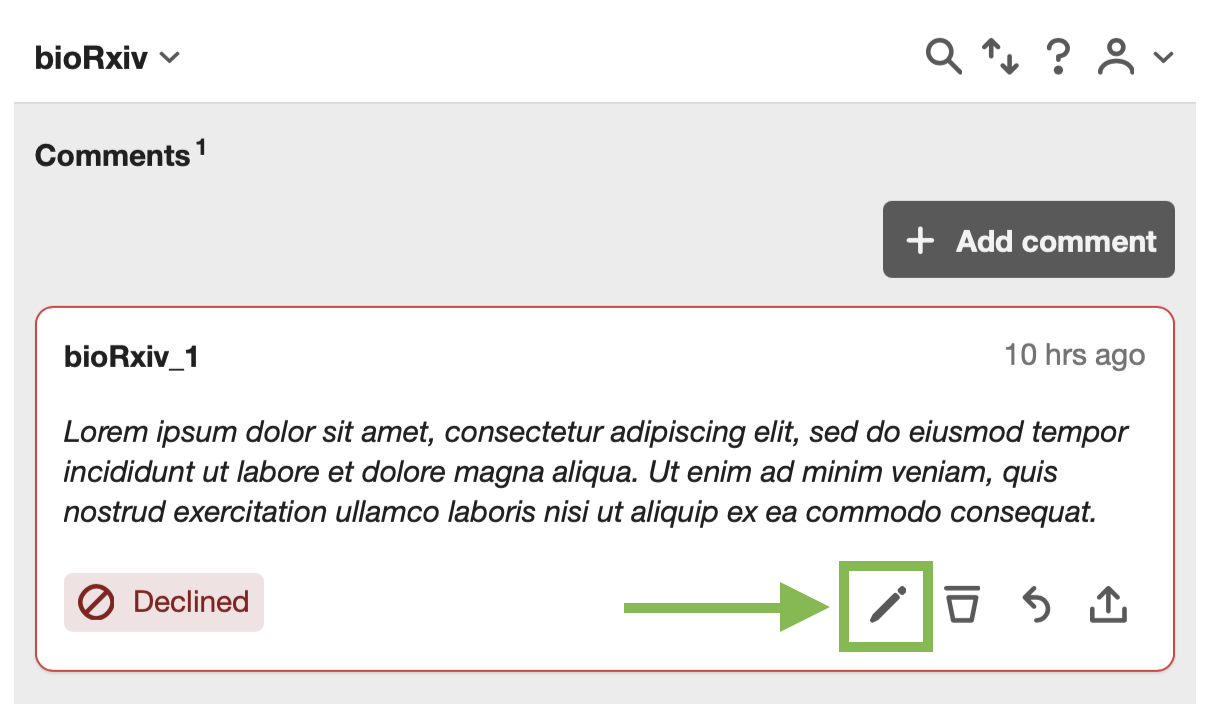
- Make the necessary changes to your comment. See our Community Guidelines for guidance on inappropriate content.
- Click the Post to bioRxiv button. Your comment status will change from Declined to Pending until the bioRxiv moderators have reviewed your comment again.
Additional Options
Formatting your comments
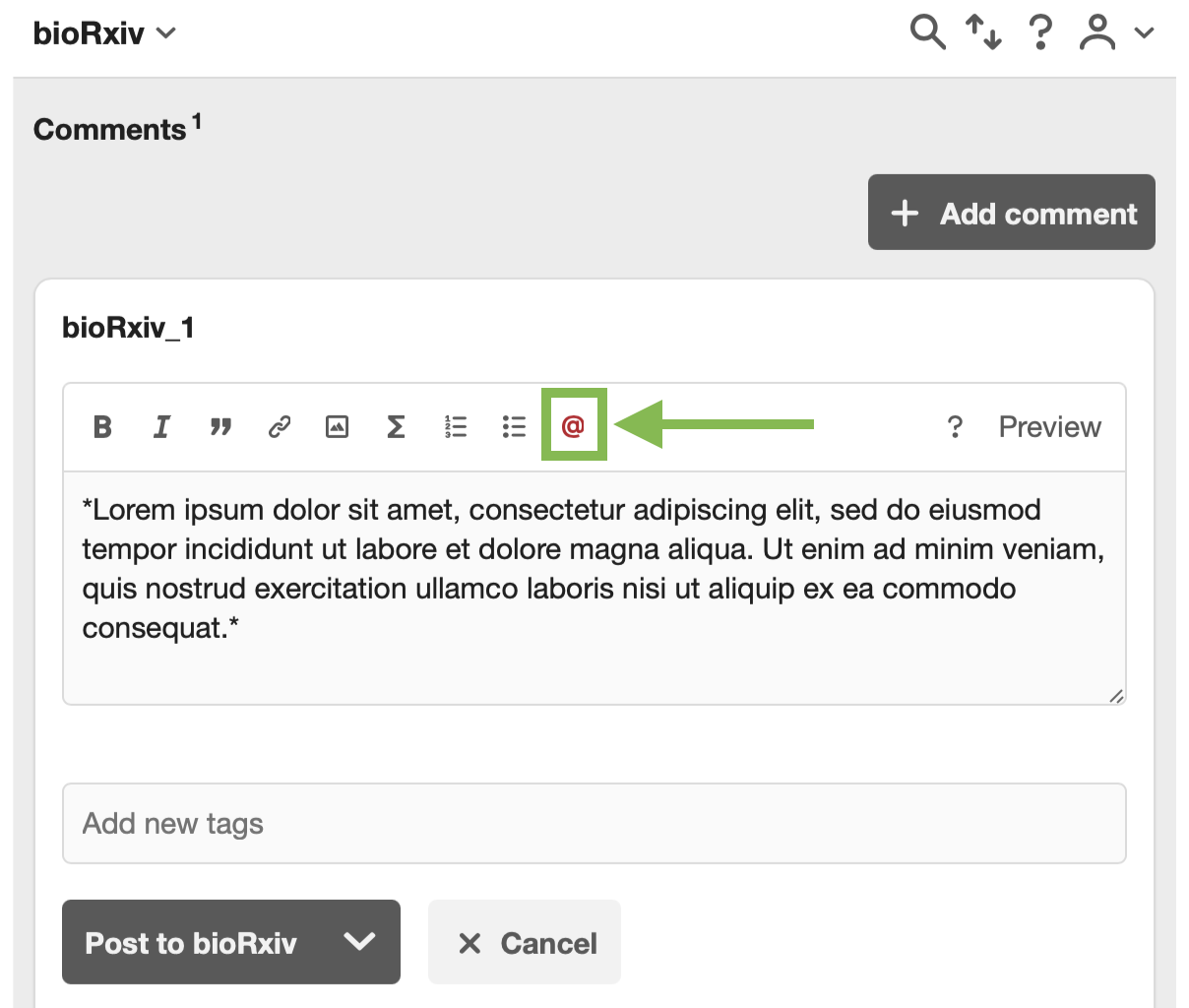
To format your comments you can use Markdown or click on the icons representing the format option: bold, italics, quotes, links, inserted images, math notation, bullet points and numbered lists. Clicking on the icon for a format option will automatically add the appropriate Markdown coding. For example, in the screenshot below, italics formatting is selected, which adds an asterisk before and after the block of text to be italicized. Before posting your comment, you can click Preview to check how your comment will look after it is approved for posting.
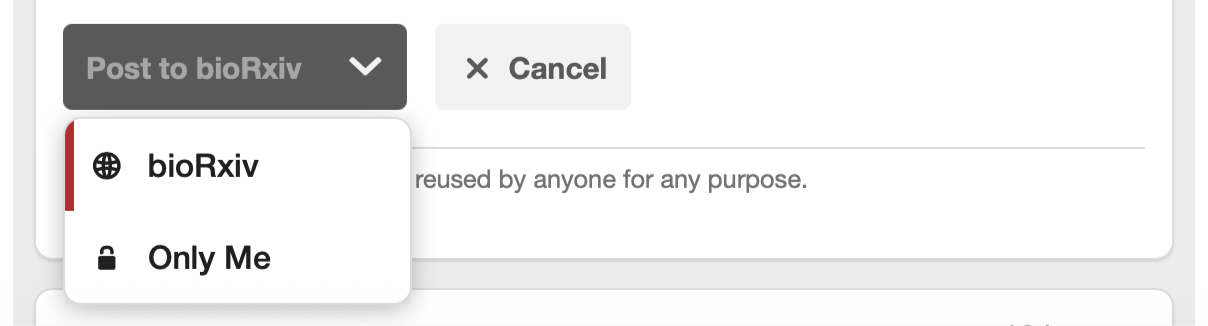
Posting privately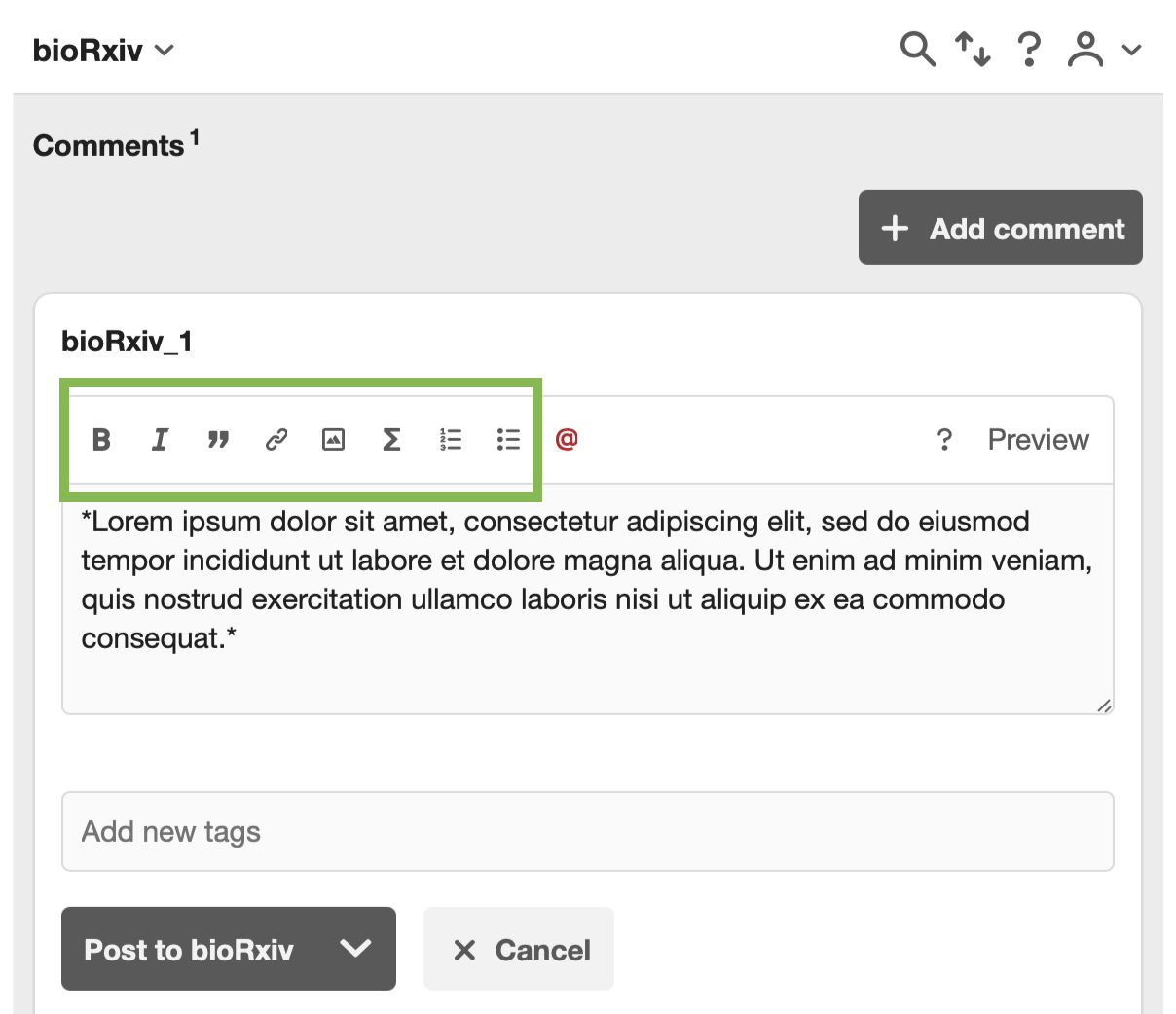
Use the down arrow next to the "Post to" button and change the location of your comment to "Only Me". Comments posted to "Only Me" are visible to you only. Given that it is visible to you only, it will not require a moderator's approval.
@mentions
To mention other users, use the Mention icon to draw their attention to your comment. More about @mentions can be read here.